JustAsk Agent (standalone chat)
The JustAsk Agent provides a standalone, conversational interface for exploring your data. Ask questions, generate queries, and visualize results without needing to work directly in a workbook.
Accessing the JustAsk Agent
Section titled “Accessing the JustAsk Agent”To access the JustAsk Agent, click JustAsk at the bottom of the left sidebar. The chat interface opens in a dedicated page where you can begin asking questions about your data.
Capabilities
Section titled “Capabilities”The JustAsk Agent can:
- Answer natural-language questions about your data
- Search existing dashboards for tiles and visualizations that already answer your question before generating a new query
- Generate queries based on your prompts, routed through the topics you can access
- Create visualizations, including KPI tiles, directly from your prompts
- Create dashboards based on the queries and visualizations in the session
- Create input columns to annotate query results inline. Refer to Input columns to learn more.
- Create, edit, find, and delete routines
- Accept files and images as context:
- Upload files including text and Markdown files to provide additional context alongside your queries
- Attach images by pasting from your clipboard to provide visual context for your questions
- Search the JustAsk docs to answer questions about how to use JustAsk
- Search the web for real-time information, when your admin enables it
Getting help
Section titled “Getting help”If you’re stuck and can’t remember how to do something in JustAsk, just ask the JustAsk Agent. Questions like “How do I do [thing]?” will prompt the agent to search the docs and provide you with an answer, all without leaving your JustAsk workflow.
You can also directly tell the agent to search the docs when researching the answer to your question.
Scoping responses
Section titled “Scoping responses”The JustAsk Agent uses pickers to scope responses to specific connections and topics. Click the button at the bottom of the chat box to open the pickers.
Up to two pickers can display in the chat interface:
- Connections - Lists the connections you have access to. Only displays if more than one connection is available. This setting can’t be changed if you’re using the chat in a workbook or dashboard.
- Topics - Lists the available topics in the model. Only displays if at least two topics in the model are accessible.
Scoping topics
Section titled “Scoping topics”If a prompt is entered and a topic isn’t selected - meaning that Auto-select a topic is selected in the topic picker - the AI will attempt to select the most relevant topic.
To scope the AI’s response to a specific dataset, use the pickers to select a specific topic or composite topic. The AI will remain “locked” to the selected topic until the selection is changed.
Additionally, the picker menus won’t display when a model only has one AI-accessible topic.
Searching existing dashboards
Section titled “Searching existing dashboards”Before generating new queries, the JustAsk Agent can search for existing dashboards that might already answer your question. When you ask a question, the AI analyzes your prompt and searches through:
- Dashboard names - Searches the content index for dashboards with relevant titles
- Tile and chart names - Searches for specific visualizations that match your question
The AI uses multiple search variations of your keywords to improve the chance of finding relevant content. For example, if you ask about “inventory items count”, it might search for “inventory items”, “items count”, and “inventory” separately. You can also provide the AI with a dashboard’s ID.
When the AI finds potentially relevant dashboards, it:
-
Evaluates tiles
Uses semantic matching to identify which specific tile or chart from a dashboard best matches your question
-
Shows live previews
Executes the underlying query and displays the actual chart or table visualization inline in the chat
-
Highlights direct answers
If a tile directly answers your question, it displays in a highlighted card with an AI-generated explanation of why it’s relevant
This helps you discover existing content before creating new queries, promoting reuse of trusted dashboards and reducing duplicate analysis work.
Creating queries and dashboards
Section titled “Creating queries and dashboards”When the JustAsk Agent answers a question, it generates a live query you can inspect, refresh, or roll up into a dashboard alongside other charts from the session.
Viewing query field details
Section titled “Viewing query field details”When the JustAsk Agent generates a query, you can view details about the fields used in the results. This helps you understand what data the AI selected and how each field is defined.
To view field details, click the icon near the top-right corner of the query results, next to the icon. A panel displays information for each field in the query, including:
- Field name - The field’s label and identifier in the model
- Definition - The calculation that defines the field
- Description - Additional context about the field, if defined in the model
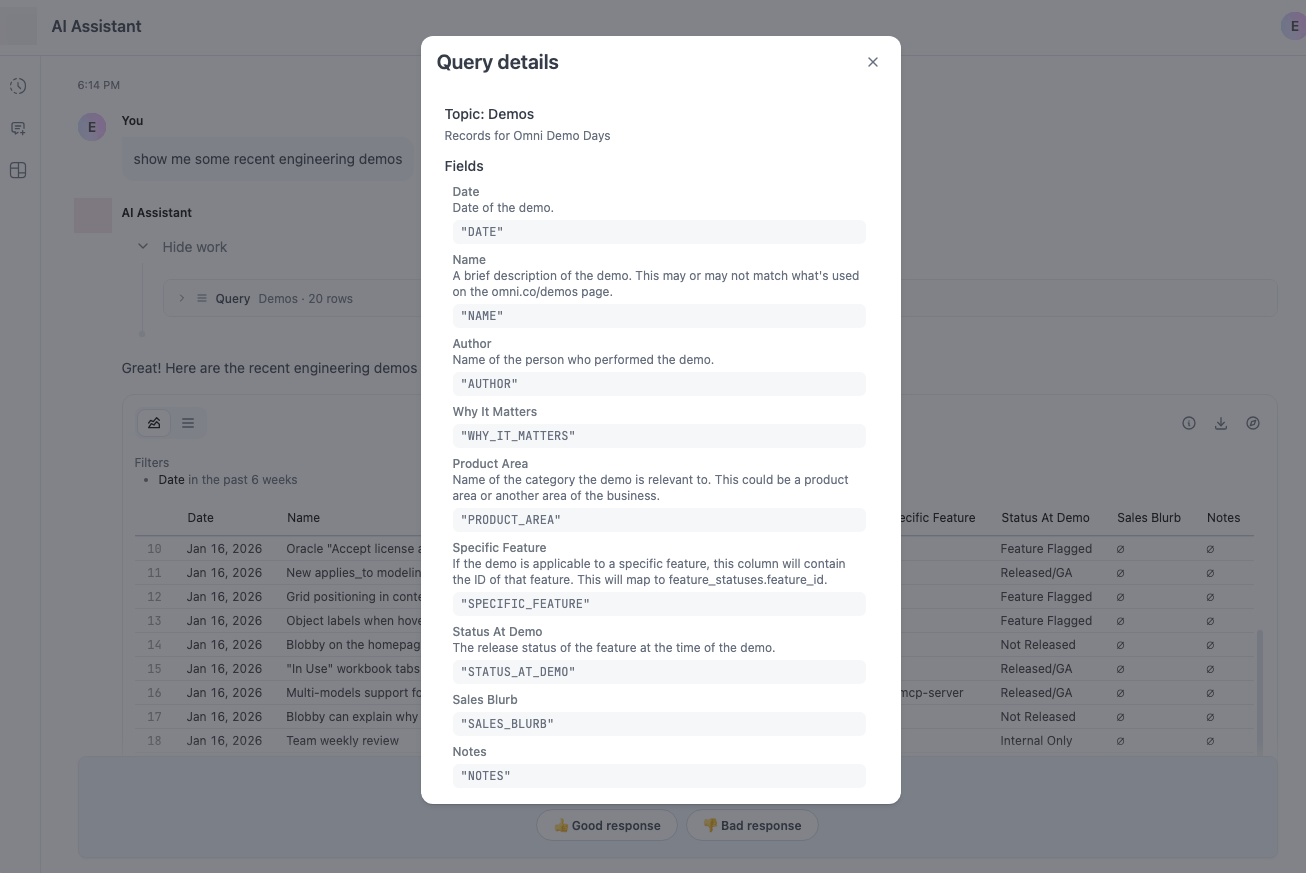
This feature provides transparency into AI-generated queries, helping you verify the AI selected appropriate fields and understand the underlying data structure.
Refreshing query results
Section titled “Refreshing query results”When you revisit a previous chat session, query results may be stale. To update the results with the latest data, click the icon floating above the chat box:
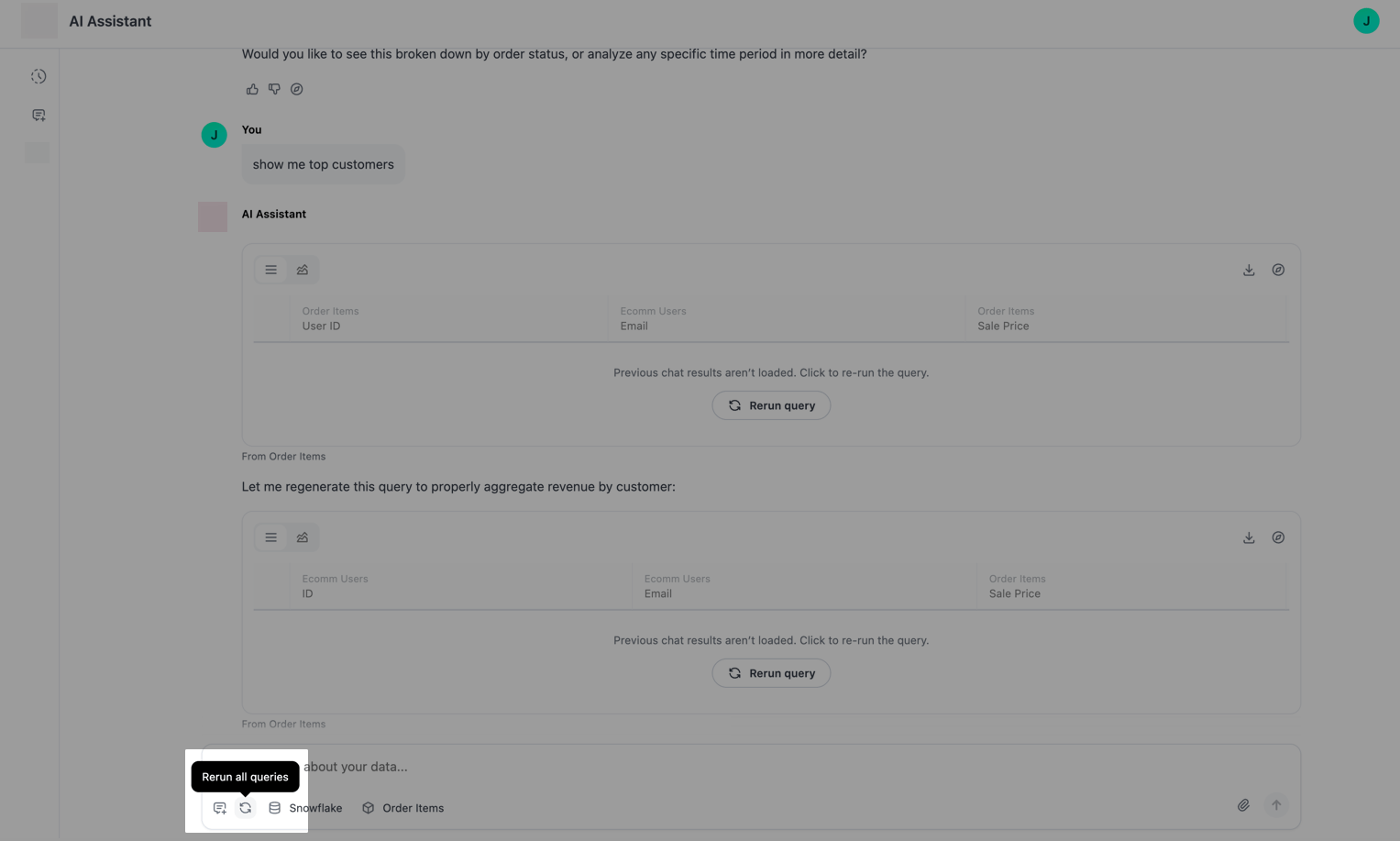
Clicking this icon re-runs all queries in the conversation, updating visualizations and results with current data. To optimize performance, only the most recent queries are re-run.
Creating dashboards
Section titled “Creating dashboards”The JustAsk Agent can build dashboards. There are a few ways to get started:
-
Ask the agent directly to build a dashboard — describe the dashboard you want in the chat and the agent plans the layout, generates queries, and publishes a complete dashboard:
“Create a dashboard showing sales performance by region with monthly trends and a top customers table” After the dashboard is created, you can ask the agent to iterate on it in the same session — rearranging tiles, editing charts, or adding new ones.
The dashboard saves to your My documents folder if your organization’s Allow personal content setting is enabled for you.
If the setting isn’t enabled, the agent saves the dashboard to your organization’s shared Hub or your embed entity’s shared folder (embed users only), as long as you have permission to save there. If none of these destinations is available, the agent reports that it can’t save the dashboard and names who can grant you access.
-
From an existing chat — you’ve been exploring data and created a few visualizations in a chat session, ask the agent to pull them into a dashboard
-
Upload an image — drop in an image of a dashboard you’d like to replicate. The agent parses what it sees and uses it as a starting point
Working with routines
Section titled “Working with routines”The JustAsk Agent can create, edit, find and open your existing routines from chat, and delete a routine when it’s open in the split view. See AI Routines for more information.
Adding files as context
Section titled “Adding files as context”You can upload text and Markdown files or paste images from your clipboard to give the JustAsk Agent additional context for your questions. Files are processed in your browser and are not stored on JustAsk’s servers.
Uploading files
Section titled “Uploading files”You can upload text (.txt), Markdown (.md), XML (.xml), HTML (.html, .htm), and images to the JustAsk Agent to provide additional context for your questions. This is useful when you need to reference additional information alongside your data queries.
To upload a file:
- Click the icon at the bottom of the chat box
- Select Attach file
- Select a file from your computer
- The file appears as a file chip in the chat box, indicating it’s ready to be sent with your message
The JustAsk Agent can then read and reference the contents of the uploaded files when generating responses, allowing you to ask questions that combine your data with external context or documentation.
Attaching images
Section titled “Attaching images”You can paste images directly from your clipboard into the chat to provide visual context alongside your questions. This works with screenshots, images copied from web pages, or any image data on your clipboard.
To attach an image:
- Copy an image to your clipboard (for example, take a screenshot or copy an image from a web page)
- Click into the chat box
- Paste the image using your system’s paste command (
Cmd+Von Mac,Ctrl+Von Windows/Linux)
The image appears as a file chip in the chat box, indicating it’s ready to be sent with your message. You can attach multiple images to a single message by pasting them one after another.
Managing chat sessions
Section titled “Managing chat sessions”Each conversation with the JustAsk Agent is saved as a chat session you can revisit.
Navigating prompt history
Section titled “Navigating prompt history”You can quickly recall previous prompts using keyboard shortcuts, similar to a command-line interface:
- Press the Up arrow key to cycle backward through your previous prompts
- Press the Down arrow key to cycle forward through your prompt history
When you reach your oldest prompt and press Up arrow again, the navigation wraps to your most recent prompt. Pressing Down arrow after your newest prompt restores any in-progress text you were typing before navigating the history.
The prompt history displays only your own prompts from the current chat session.
Managing long conversations
Section titled “Managing long conversations”As your conversation with the JustAsk Agent grows, it consumes more of the available context window. When a chat session reaches 75% of the context window, a visual indicator appears on the New chat button to help you recognize when starting a fresh conversation would improve performance.
This feature is automatic and requires no configuration. Starting a new chat when prompted helps maintain optimal AI performance, especially for complex queries and analysis.