Switch between the layers and classic editors
New X/Y charts use layers. X/Y charts that were created before layers keep the classic editor, which JustAsk calls the previous chart editor. You can move a chart between the two editors at any time.
Requirements
Section titled “Requirements”- Layers must be turned on for your organization.
- The chart is an X/Y chart: bar, line, area, or scatter
- You can edit the workbook
Move a chart to layers
Section titled “Move a chart to layers”Moving a chart to layers creates a copy of the tab. The original tab and chart don’t change.
-
In the workbook, open the tab with the chart.
-
Click Tab > Test the new chart editor….
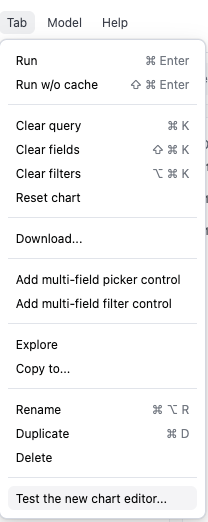
-
A preview dialog shows the Current chart above the New chart editor version, which uses layers. Compare the two.
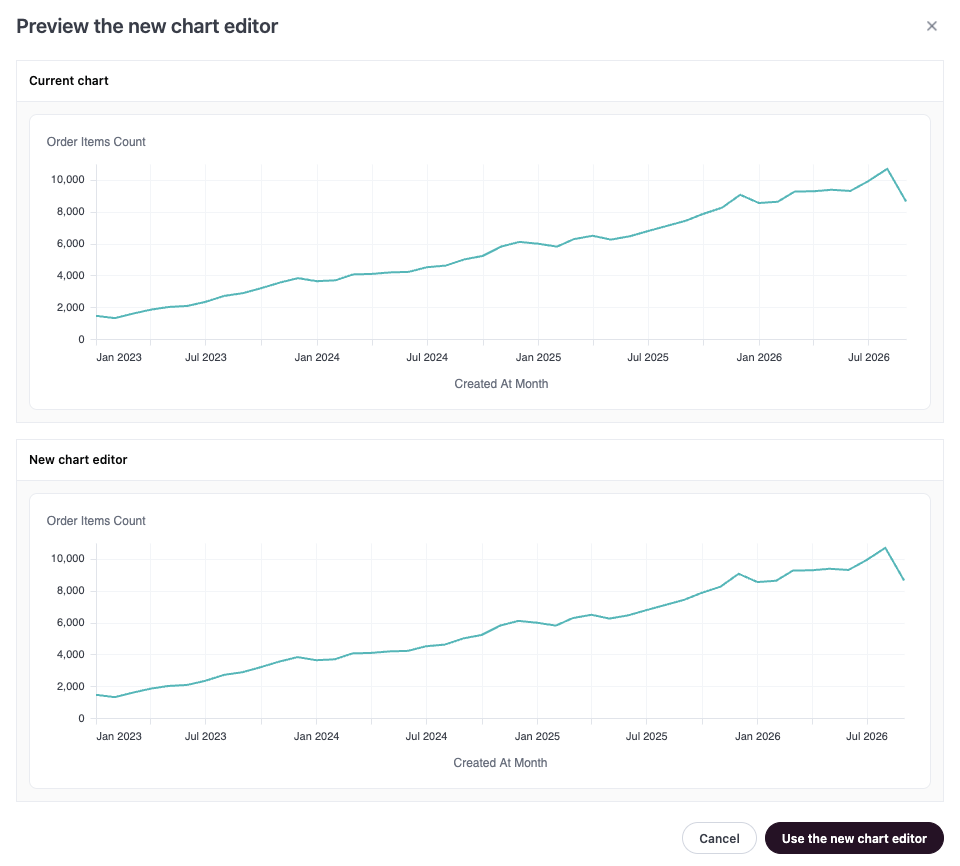
-
Click Use the new chart editor. JustAsk adds a copy of the tab that uses layers.
If Test the new chart editor… doesn’t display in the Tab menu, the chart isn’t an X/Y chart, already uses layers, or uses settings that layers can’t show.
Move a chart back to the classic editor
Section titled “Move a chart back to the classic editor”Moving a chart back changes the chart in place. It doesn’t create a copy.
- Open the tab with the layered chart.
- Click Tab > Leave the new chart editor….
- Click Leave new chart editor to confirm.
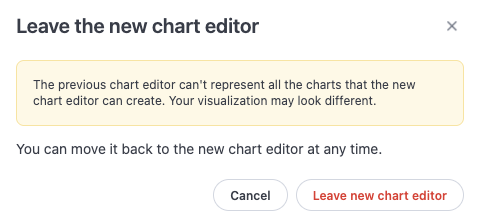
The classic editor can’t show all the charts that layers can make, so the chart can look different. Refer to What changes when you leave layers. To use layers again, click Tab > Test the new chart editor…, which creates a layered copy of the tab.
What changes when you move to layers
Section titled “What changes when you move to layers”- Measures with the same mark can become one layer. If every measure on the left axis uses the same mark, those measures become one Measure values layer, so that they stack or group as before. If the left axis doesn’t qualify, JustAsk checks the right axis. The layer is colored by the chart’s color field, or by Measure names if the chart had no color field. The layer keeps the stacking, the colors that you set by hand for each measure, and the Simple totals setting.
- Only the first measure’s labels and analytics are kept for those measures. Data labels, regression lines, and moving averages on the other measures are removed.
- Chart-wide settings move to each layer. The chart’s mark, color, size, and labels are copied to every layer.
- Colors can change. Layers use one chart palette across all layers, so a chart with more than one layer can get different colors.
- Legends and tooltips look different. Legend symbols match the mark, and the tooltip on a line, area, or scatter layer displays when you hover near a point.
- The X-axis order can change. With Automatic sort, a text field on the X-axis follows the order of the query results.
What changes when you leave layers
Section titled “What changes when you leave layers”The classic editor has one color setting and one size setting for the whole chart. When you leave layers:
- A Measure values layer becomes one series for each measure. Each series gets the layer’s labels, regression line, and moving average.
- Each measure keeps its mark and its labels.
- A color or size field stays only if every layer uses the same one. If the layers use different color or size fields, those settings don’t display, and neither does the stacking that depends on them.
- Measure names on the X-axis has no equivalent in the classic editor, so the chart has no X-axis.
Troubleshooting
Section titled “Troubleshooting”Measures that used to stack now draw on top of each other
Separate layers don’t stack on each other. Put the measures in one Measure values layer, color the layer by Measure names, and set Stacking to Stacked.
A Stacked % layer is squashed at the bottom of the chart
Layers on one axis share the axis’s scale. If one layer uses Stacked % and another layer on the same axis uses a different stacking option, the percentage layer draws on the other layer’s scale. Use the same stacking option for every layer on the axis, or move one layer to the other axis.
Changing a color in one layer changed another layer
Layers that color by the same field share one color setup. Refer to One color setup per field.
A scatter layer lost its size setting
Size is available only on Scatter layers. Changing the layer’s mark removes the size setting.
Labels are missing on a bar layer
JustAsk hides labels that overlap other labels. Turn on Show all in the layer’s label options.
A line layer zigzags up and down
The layer doesn’t use every dimension in the query. Refer to Smart aggregation.