Organizing content with folders & labels
As your team creates content, finding the right balance between access and discoverability becomes crucial. JustAsk’s content system allows you to efficiently manage your content with:
- Folders, which provide a simple, hierarchical structure for organizing content and controlling access
- Labels, which can enhance findability without the need for duplicating content across folders
By combining folders and labels, you can create an intuitive content organization system that supports your team’s collaboration by ensuring that the right content is always easy to find.
Folders
Section titled “Folders”Using folders for content organization allows you to maintain structure and determine how users access content. For example, folders could allow you to organize content and access for:
- Teams, such as Operations or Finance
- Employee level, such as Manager or Executive
- Projects
- Clients
Folders can contain documents and subfolders.
Creating folders
Section titled “Creating folders”To create a folder, click Add folder in the My documents folder or your organization’s Shared hub.
Creating subfolders in folders is supported. The parent folder can contain up to seven levels of nesting, for example:
Directory. Shared (root)
DirectoryFolder 1/
DirectoryFolder 2/
DirectoryFolder 3/
DirectoryFolder 4/
DirectoryFolder 5/
DirectoryFolder 6/
- Folder 7 (nesting limit)/
Moving folders
Section titled “Moving folders”-
To move a folder:
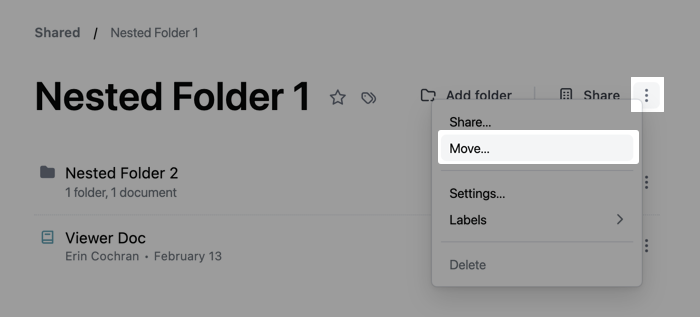
- Open the folder and click the icon next to the Share icon, or
- On a page like the shared Hub or My Documents, click the icon next to the folder:
-
Click Move.
-
Select the folder to move to. You can browse folders, or search for the destination folder by name. Search results show each folder’s full path.
-
Click Save.
Accessing and sharing folders
Section titled “Accessing and sharing folders”When you share a folder, permissions cascade to all documents and subfolders inside it. This means that the access role you assign to a folder applies to everything the folder contains.
Content access roles on folders work differently than on individual documents. For a detailed comparison of folder and document permissions, and information about inheriting access roles, refer to the Sharing content guide.
Scoping folder navigation with breadcrumb roots
Section titled “Scoping folder navigation with breadcrumb roots”You can configure a folder as a breadcrumb root to scope navigation to that folder and its contents. When a folder is set as a breadcrumb root, breadcrumbs for the folder and everything inside it start at that folder. Ancestor folders and the crumbs for the top-level spaces (Shared and My Documents by default) are hidden. If your organization has renamed these spaces, the hidden crumbs use the custom names instead. This setting affects:
- Folder page breadcrumbs and the file picker
- Dashboard and document title breadcrumbs and hover cards
- Content list location strings
This setting is useful for scoping navigation to a specific subtree.
To set a folder as a breadcrumb root:
-
Open the folder and click the icon next to the Share icon.
-
Click Folder settings.
-
In the Advanced options section, check the Breadcrumb root checkbox.
-
Click Save.
Deleting folders
Section titled “Deleting folders”Folders can only be deleted if they’re empty. Who can delete a folder depends on their content access role:
- Editors can delete empty folders they created
- Managers can delete any empty folder they have access to
To delete a folder, click the folder’s icon and then Delete.
Labels
Section titled “Labels”While folders are helpful for maintaining structure and access, a document can only be in one folder at a time. For example, a dashboard is relevant to multiple teams, each of which has their own folder. Where should the document be located?
With labels, you could place the dashboard in a shared folder and add relevant labels, ensuring the right people can find the content. Labels allow you to organize your content in a way that doesn’t require duplication or sacrifice findability.
Using labels, you can:
-
Organize content by subject area, such as Marketing or Support
-
Indicate the current working state of a document, such as In progress
-
Recognize labels your admin marks as Verified or Homepage (see label options)
Applying labels
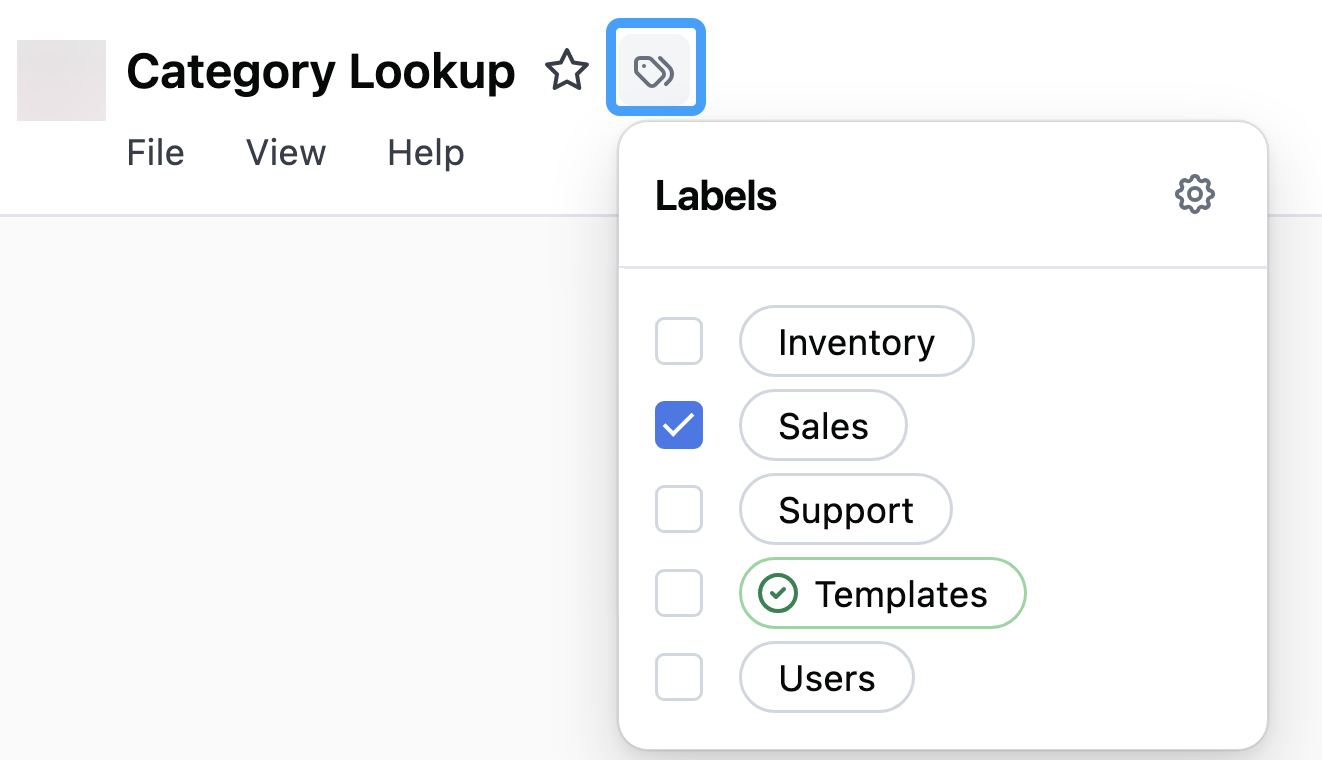
Section titled “Applying labels”To apply a label to a document or a folder, click the Labels icon to the right of the document/folder name:
Viewing label information
Section titled “Viewing label information”When you hover over a label, a tooltip displays additional information about the label, including:
- The label’s description (if one has been added)
- Who applied the label and when it was applied
This metadata helps you understand the context and history of labels applied to content. You can view this information wherever labels appear in JustAsk, including:
- Document and folder detail pages
- Content listings (Home page, My Documents, folders)
- Search results
- The curation popover
Label options
Section titled “Label options”Labels can be configured with special options that provide additional functionality.
Homepage
Section titled “Homepage”Enabling the Homepage option allows you to select content to display on your users’ Home page, in the For you section.
This can be useful for:
- Providing helpful starting points for new users in your organization
- Ensuring content relevant to all users is easily accessible
Verified
Section titled “Verified”Enabling the Verified option allows you to mark important content, such as dashboards that are monitored for correctness. This can be helpful for conveying to your users which content is actively maintained or has been vetted.
When these options are enabled, the corresponding label will be highlighted to increase prominence. Labels with the Verified option will be highlighted green with a checkmark, while those with the Homepage option will have a Home Page badge:
