KPI
KPI visualizations spotlight key metrics and data points, from a single headline number to side-by-side comparisons and progress toward a goal. Each KPI is built from one or more rows, and every row can be a different component type, giving you fine-grained control over layout and presentation.
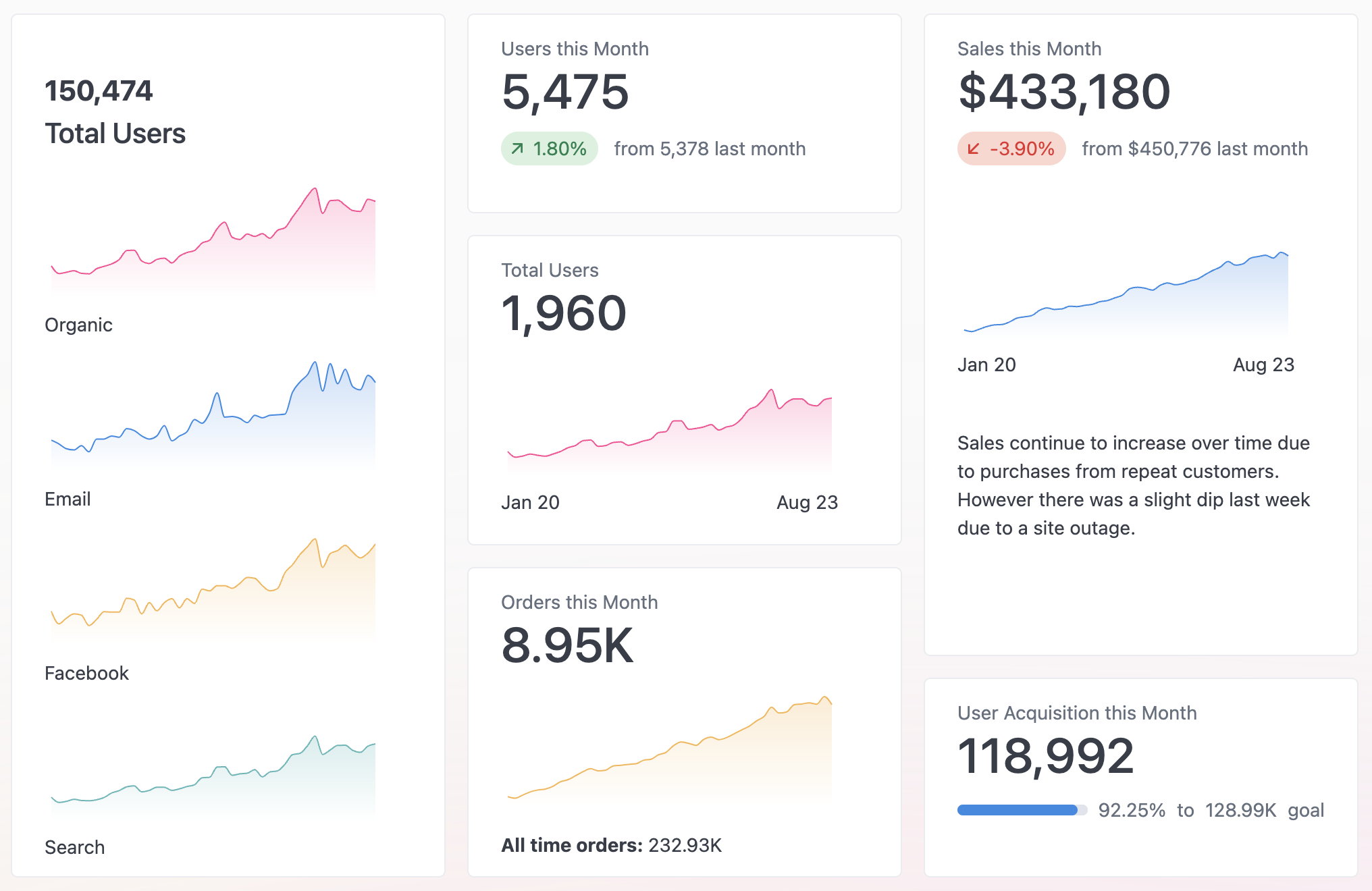
Adding components
Section titled “Adding components”KPIs support several types of components, allowing you to customize the content and layout of your visualization. Click the Add button in the visualization to add a new component.
Customizing components
Section titled “Customizing components”To customize the display of a component, click the component in the visualization editor. Use the KPI Builder tab in the chart configuration options to make changes to the component.
Component types
Section titled “Component types”KPIs support several component types, each suited to a different way of presenting data. You can mix and match them within a single visualization.
Number
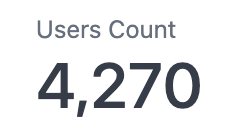
Section titled “Number”Highlights a single value.
Comparison
Section titled “Comparison”Comparison components compare one value to another and support comparing across columns and pivots. Select the same column for both comparison fields to compare two rows within a dataset.

Progress
Section titled “Progress”Compares two values. Useful for showing progress to a goal. Can be displayed as a bar (shown) or a circle.
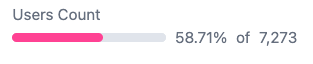
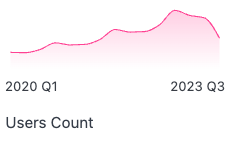
Chart components display a mini sparkline, bar, or line chart. Renders a sparkline by default.
Markdown enabled free text. Useful for titles, headings, and descriptions.
For complex layouts, use the Markdown visualization.

Images display an inline image. Configured by providing a URL to a publicly accessible image.
Styling options
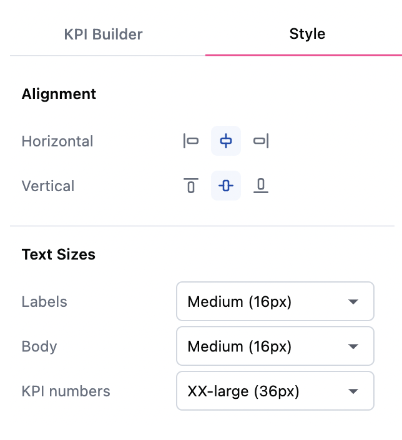
Section titled “Styling options”Use the Style tab in the chart configuration options to customize the alignment and text sizes for KPI components.
Converting to raw Markdown
Section titled “Converting to raw Markdown”If you want to customize a KPI beyond JustAsk’s built-in options, you can convert the visualization directly to Markdown by changing the visualization type to Markdown.
To undo changes, use the back button in your browser.