Building workbook queries on topics
When you create a workbook or add a new query tab, you’ll be prompted to select a starting point for the query. The All Views & Fields view will display the topics you have access to in the model that the workbook is based on.
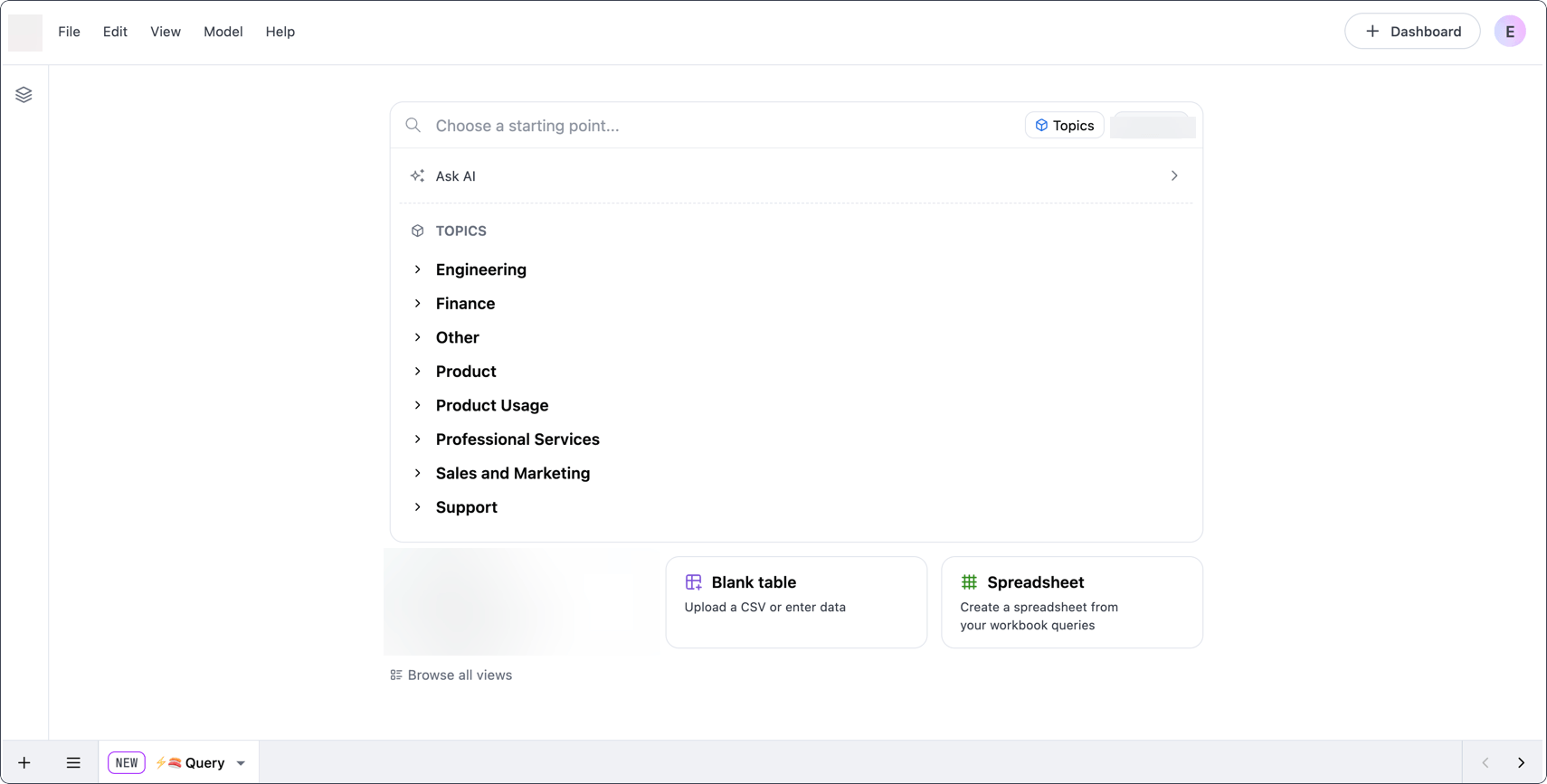
Using topics in queries
Section titled “Using topics in queries”Switching topics
Section titled “Switching topics”To change topics in a query tab, use the topic switcher in the top left corner of the field browser:
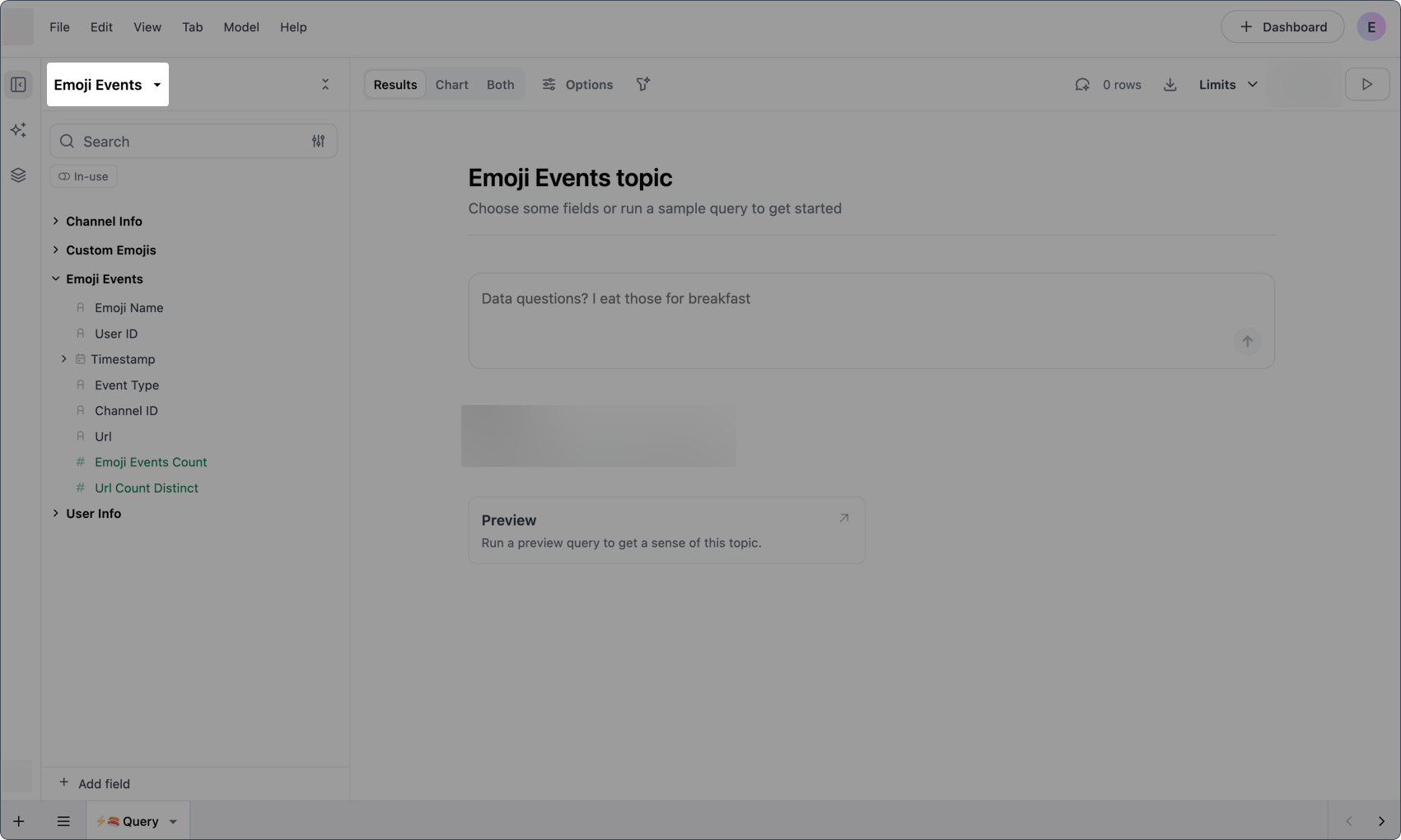
The search allows you to search for topics, topic groups, and composite topics by label, name, and description.
Select the topic you want to use, which will populate the field browser with the topic’s tables and fields.
Using multiple topics
Section titled “Using multiple topics”A query can only use a single topic at a time. However, depending on your needs, there are a few workarounds that may be useful.
Start your analysis in the topic that best matches your use case. Then:
- Ask your data team to add data that isn’t included in the topic yet, or
- If there isn’t a clear relationship, consider using
XLOOKUPsor a spreadsheet tab to combine multiple queries into a final output
Note: While a query can only be tied to one topic, you can use multiple topics in a single document by adding multiple queries. The topics must exist in the model that the workbook is built on.
Querying with AI
Section titled “Querying with AI”If the Workbook Agent is enabled in your JustAsk instance, you can use the agent to query topics using natural language. To open the agent, click the icon in the workbook’s sidebar.
Refer to the Building queries & filters with AI guide for more tips on using the Workbook Agent.
Topics are configured by your data team. Once available, you can use them as the basis for any query.