Dynamically displaying tile fields with controls
Controls allow you to choose which fields will be shown in a tile.
Requirements
Section titled “Requirements”Creating and modifying controls requires Editor, Manager, or Owner permissions on the document.
Creating dashboard controls
Section titled “Creating dashboard controls”To add a control to the dashboard, go into edit mode and click Add > Control in the toolbar. Configuring a control asks that you start by picking one of the underlying fields common to the tiles you want to control. Otherwise the control will have no impact (e.g. adding a field switcher between “order volume” and “total sales” to a tile that is showing “user count” will have no impact).
Like filters, when you are editing the control you can pick which tiles on the dashboard to connect by toggling the icon in the top right of each tile. You can also set default values and optionally hide the control from dashboard viewing.
Control types
Section titled “Control types”| Type | Description |
|---|---|
| Field switcher | Swaps a single field for another within the same query |
| Multi-field picker | Selects one or more fields to show in a chart |
| Timeframe switcher | Controls the granularity of a date grouping |
| Period over period | Compares metrics between time periods |
| Parent | Controls the toggling of multiple controls |
| Dynamic filter | Allows dashboard viewers to add filters to a published dashboard |
| Top N limit | Enables change the number of values (N) on a Top N field |
Field switcher controls
Section titled “Field switcher controls”Field switcher controls allow dashboard viewers to swap a single field for another field within the underlying query. When used with dimensions, this will change the grouping or breakdown of a query. For example, a field switcher with dimensions like country, gender, and age group allows viewers to slice the metrics in the connected tiles in different ways. When used with measures, the metric to be displayed in the connected charts will update.
Field switcher controls can have any number of fields. Typically field switchers are either all measures or dimensions, but they can be mixed. You can also add a no field option, which is useful when you want to offer viewers a way to see the total metric value or pick a dimension to change the grouping.
Multi-field picker controls
Section titled “Multi-field picker controls”A multi-field picker control allows you to pick zero or more fields to show in a chart. While usually most useful on table visualizations, it can be connected to any chart tile on the dashboard.
Enable field reordering for viewers
Section titled “Enable field reordering for viewers”Use the Control manages field order setting in the properties panel to let dashboard viewers to reorder fields they select from the control:
- When enabled, fields appear in the order they’re selected in the control, even if the underlying query already includes them. Sorts, subtotals, pivots, fills, and transposition settings are preserved. Note: Measures cannot be placed between dimensions. If this occurs during field selection, JustAsk will automatically reorder the fields to place dimensions first, then measures.
- When disabled, fields already in the query keep their position and the control only adds or removes fields.
Timeframe switcher controls
Section titled “Timeframe switcher controls”For date fields, you may want to provide a control to allow the viewer to change the granularity of the date grouping. For example, change a grouping from months to weeks or to days. Time frame switchers make this easy. When configuring, select the underlying date field to control and then select the time frames you want to make available.
Period over period controls
Section titled “Period over period controls”To compare a metric between time periods, use a period over period control. When configuring, select the underlying date field that controls the time periods you want to compare. Choose the current period and one or more comparison periods. Any attached charts will break down the metric between the current and previous time period(s).
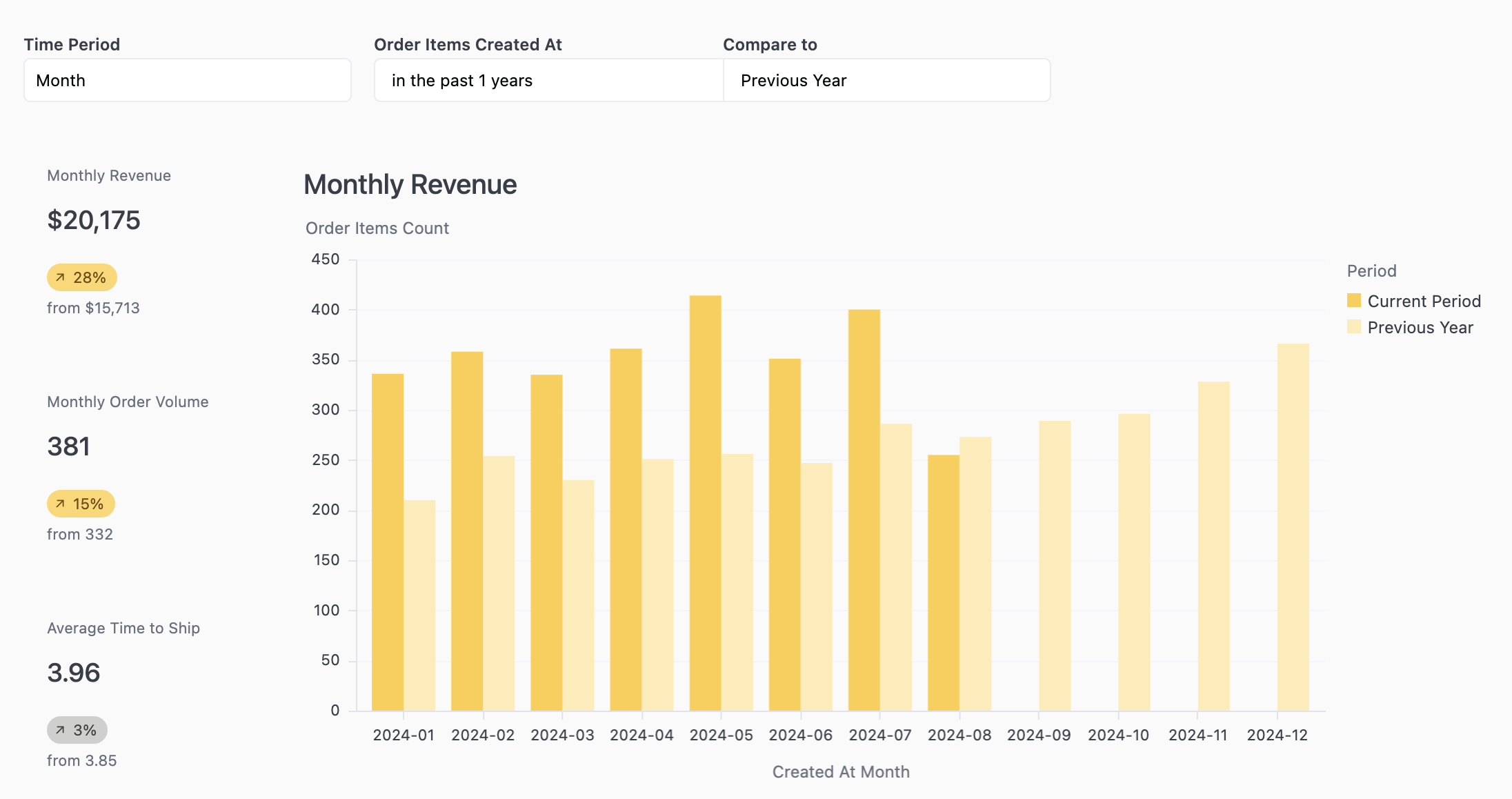
Mapping period over period controls to tiles
Section titled “Mapping period over period controls to tiles”Period over period controls can only be applied to tiles that have queries with matching period over period computations. When editing a period over period control, JustAsk will disable the mapping option for tiles that don’t include period over period computations and display a message in the properties panel.
If you need to apply a period over period control to a tile, ensure the underlying query includes period over period computations before attempting to map the control.
Parent controls
Section titled “Parent controls”A parent control coordinates the toggling of multiple controls at once. For example, consider a dashboard has a timeseries with a created_at date, another timeseries with a received_at date, and a timeseries with a returned_at date.
To coordinate the multiple timeseries fields, you would:
- Build three timeframe switchers.
- Add a parent control.
- Configure the parent control’s display options and connect the timeframe switchers as children.
- Hide the child timeframe switchers.
Dynamic filter controls
Section titled “Dynamic filter controls”Dynamic filter controls let viewers add their own filters to a published dashboard without the creator having to predefine every filter option. This enables ad-hoc exploration while giving creators control over which fields viewers can filter on. See Dynamic filter controls for more information.
Top N limit controls
Section titled “Top N limit controls”This control type allows dashboard viewers to change the number of values (N) on a Top N field. Create the control and then map it directly to an existing Top N field in the tile’s query.