Build analyses in workbooks
JustAsk’s workbook UI is focused on asking any question of your modeled data. Each workbook contains one or more tabs, where data can be queried using a UI-driven pivot-table experience.
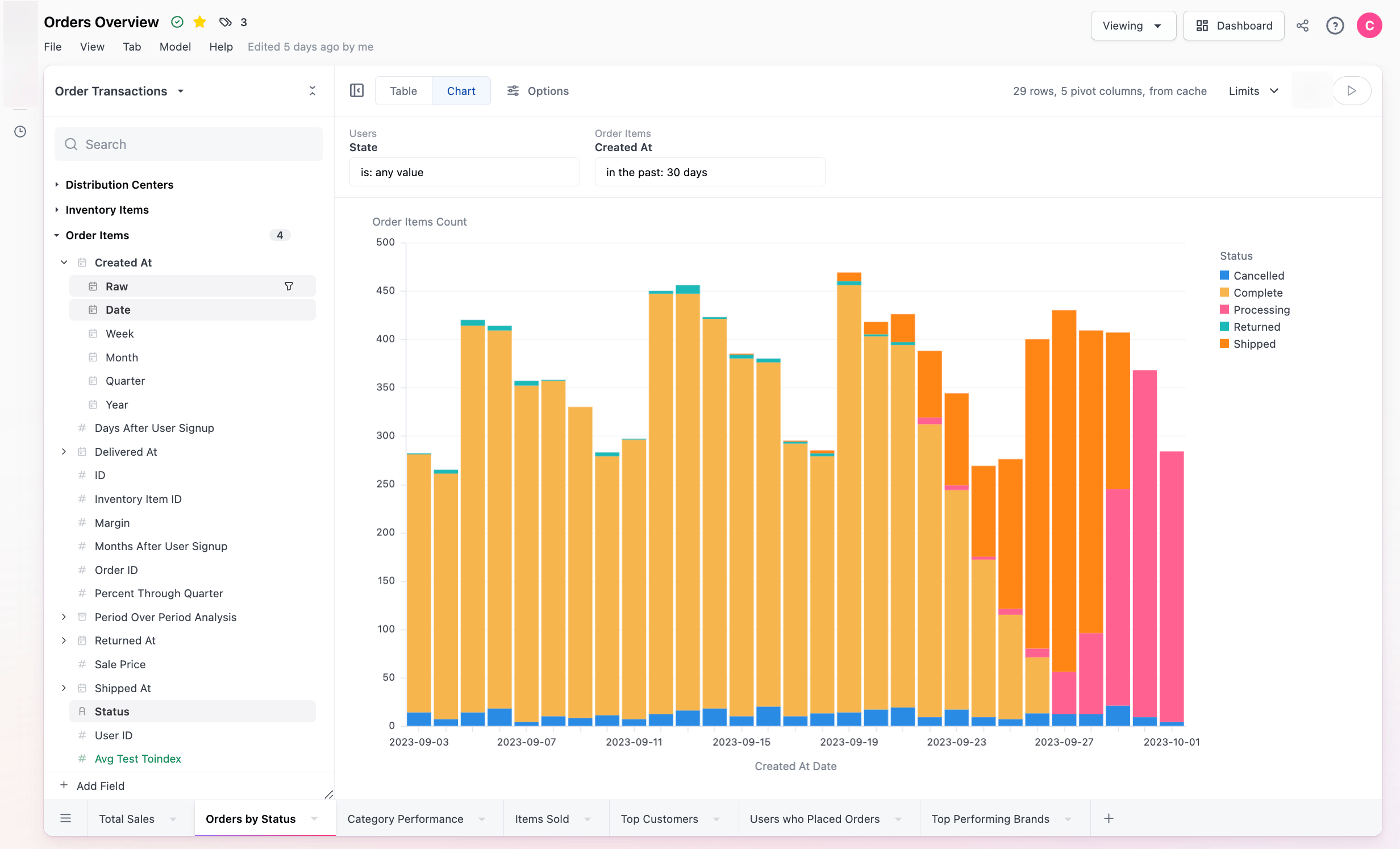
Creating a new workbook
Section titled “Creating a new workbook”To create a new workbook from the Home page:
- Click the New button in the sidebar.
- Select Workbook.
- A blank workbook will display.
Exploring a workbook
Section titled “Exploring a workbook”You can also create a new workbook from within an existing workbook. Clicking the Explore button near the top-right corner of the page creates a new copy of the workbook that you can work in without impacting the original version.
Saving a new workbook
Section titled “Saving a new workbook”Workbooks can optionally be named and saved. When a workbook is saved, it will appear alongside other dashboards and workbooks in the content system.
To save a workbook:
-
In the workbook, click File > Save.
-
Give the document a Name and an optional Description:
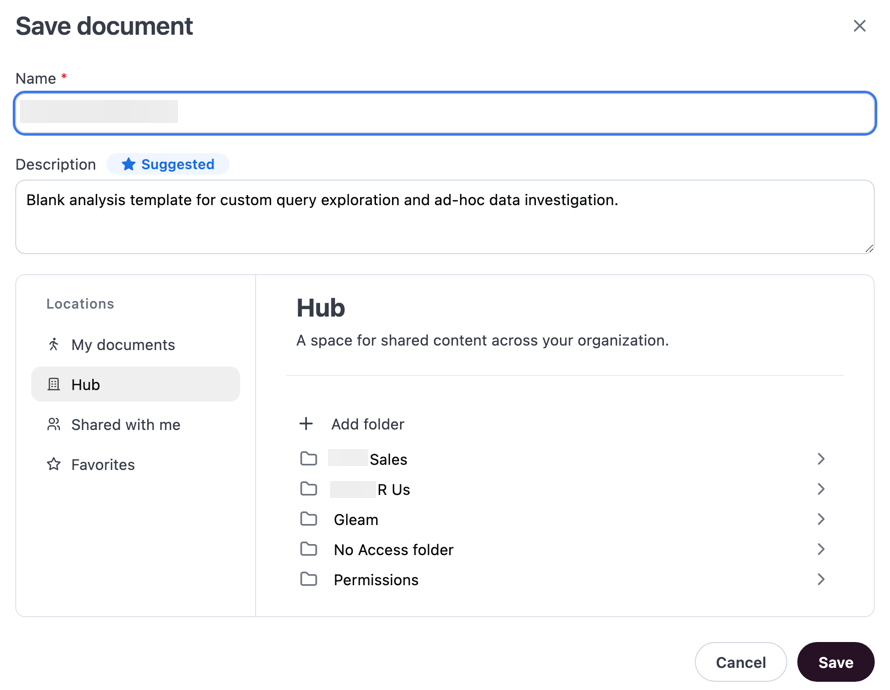
By default, JustAsk will automatically suggest a title and description based on your analysis. These AI-generated suggestions will have a Suggested badge. You can change or remove them as needed.
-
Use the Locations browser to find and select the folder you want to save the document to, or type a folder name into the search bar at the top of the browser. The document can be moved after saving if needed.
-
Click Save to save the document.
Unsaved analyses and URL behavior
Section titled “Unsaved analyses and URL behavior”When you click + New to start a fresh analysis, JustAsk creates an unnamed workbook in the background. Until you explicitly save it, this is considered an unsaved analysis — and its URL is not a stable, permanent link.
What happens when you save
Section titled “What happens when you save”Saving an unsaved analysis converts the unnamed workbook into a named document. When this happens, all URLs that pointed to unsaved states of that session will redirect to the newly saved document — even if the content appears unrelated.
For example: if a user has been bookmarking an unsaved analysis URL, and then saves a different analysis that was built in the same session, the original bookmarked URL will redirect to the newly saved document. This is expected behavior.
Preserve your analysis
Section titled “Preserve your analysis”If you want a query to remain accessible, save it explicitly using File > Save and store it in an appropriate folder. Saved documents have stable, permanent URLs and appear in the content system where they can be shared with others.
Workbook states
Section titled “Workbook states”A workbook can be in either View or Edit (draft) mode.
When viewing, you’re looking at the latest saved version of the workbook.
When editing, you’re changing the workbook and changes will auto-save as you work. Changes made in draft mode will also impact the dashboard that attached to the workbook.
Workbook versions
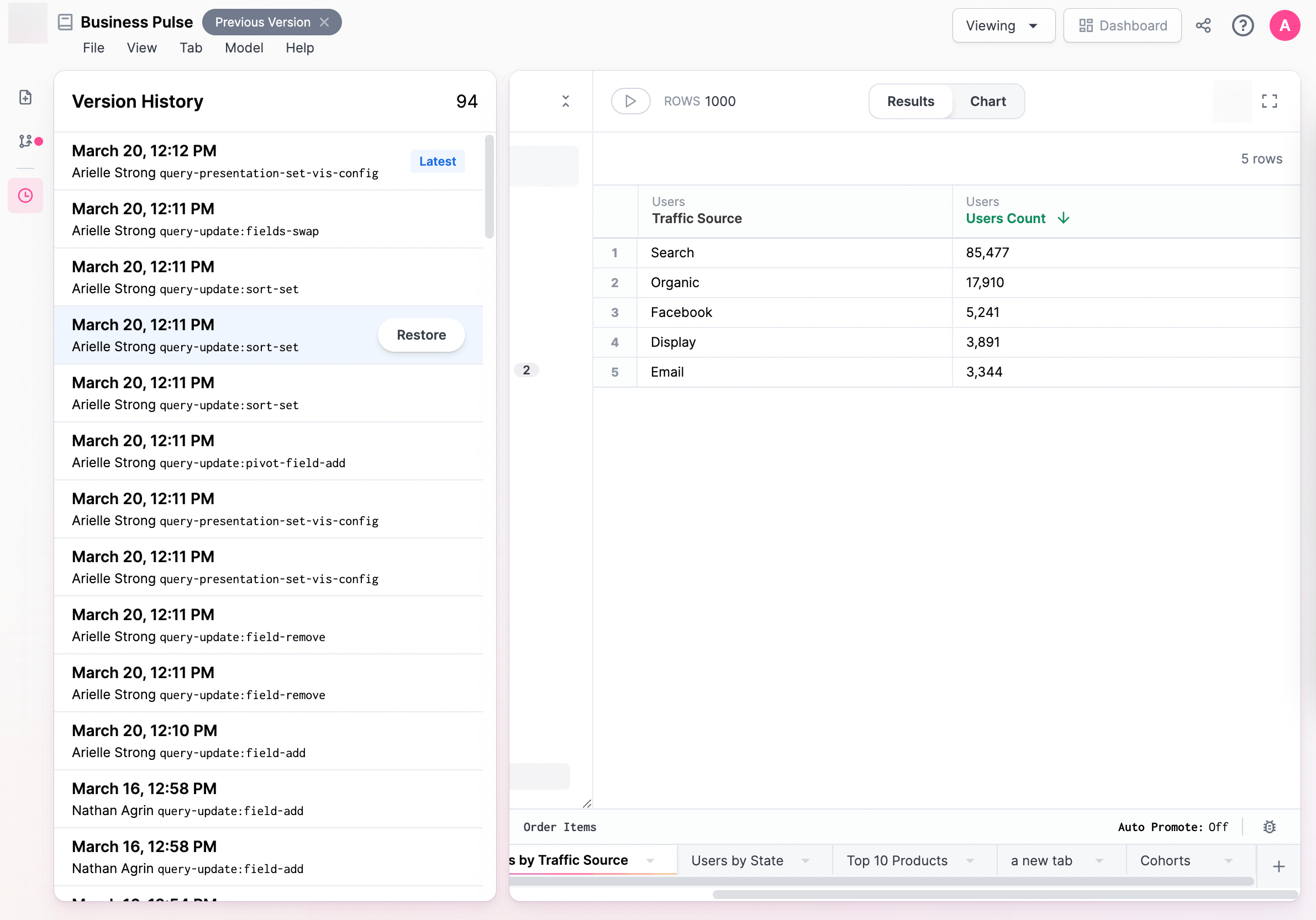
Section titled “Workbook versions”To view a history of all changes to the workbook, click File > Version History to open the Version History panel. You can also use this panel to restore a previous version of the workbook.
Moving queries between workbooks
Section titled “Moving queries between workbooks”Workbook tabs can be duplicated inside workbooks, or copied to an existing workbook, or create an entirely new workbook.
Duplicate a tab in the same workbook
Section titled “Duplicate a tab in the same workbook”From the workbook, enter edit mode, right click on the tab and select ‘Duplicate’.
Copy a tab to an existing workbook
Section titled “Copy a tab to an existing workbook”Copying an existing tab allows you to share a query between workbooks.
In the workbook with the query you want to copy:
- Enter draft mode.
- Right-click on the tab you want to copy.
- Select Copy to.
- Click the button to copy the query ID.
Then, in the workbook you want to copy the query to:
-
Enter draft mode.
-
Click Edit > Import tab. In the Import Tab dialog, you can paste either:
- The query ID (e.g.,
abc123def456) - The full widget URL (e.g.,
https://yourinstance.example.com/workbooks/123?w=abc123def456)
- The query ID (e.g.,
JustAsk will automatically extract the query ID from the full URL if provided.
There are a couple of caveats to copying to an existing workbook:
-
A tab can only be copied to a workbook with the same connection and shared model.
-
If there are changes to the workbook model in the tab you are copying over, those will be copied into the existing workbook as well. In the event of a conflict (e.g. the same field exists on both workbooks with different definitions), the workbook copied to should win.
-
If the source workbook contains query views with names that match query views in the destination workbook, the import will be refused with an error message identifying the conflicting view(s).
To proceed, rename the conflicting query view in the source workbook before importing the tab. This prevents data corruption where an imported tab would incorrectly read an unrelated view from the destination workbook.
Create a new workbook with a new tab
Section titled “Create a new workbook with a new tab”From the dashboard, right click on the tile and click Explore. From the workbook, right click on the tab and click Explore.
Linked tabs
Section titled “Linked tabs”From the workbook, enter edit mode, right click on the tab and select Create linked tab. Save the linked tab, and you can now build multiple visualizations from the same query in a workbook. This also means changing one query, you do not need repeat that change for each linked query.
- Dashboard filters can only be mapped to the source tab.
- When you delete a source tab, may either delete the linked tabs or unlink them and turn them into independent queries.