Building dashboard layouts with containers and items
Dashboards are built from two components:
- Items — The charts, text, filters, and controls you place on the dashboard
- Containers — The regions that hold and arrange items
Containers can be nested inside other containers, letting you group related items, control spacing, and build structured layouts that go beyond the flat grid of a classic dashboard.
Requirements
Section titled “Requirements”Modifying dashboard layouts requires Editor, Manager, or Owner permissions on the document.
Working with containers
Section titled “Working with containers”When you create a new dashboard or upgrade from a classic dashboard, your existing items are placed into an initial container. From there, you can add more containers, configure how each arranges its items, and nest containers inside one another to shape your dashboard.
Selecting a layout type
Section titled “Selecting a layout type”When you add a container to your dashboard, you choose between two layout types:
| Type | Description | Best for |
|---|---|---|
| Grid | Free-form positioning; items can be placed at any position | Precise control over each item’s position |
| Stack | Arrange items in columns or rows; you control spacing and alignment. | Structured sections such as a row of filters, a sidebar, etc. |
To add a container, click Add > Layout and select a layout type.
Naming containers
Section titled “Naming containers”Each container can have a name to help you identify it while editing. To rename a container, select it and edit the Name field in the properties panel on the right side of the screen.
Nesting containers
Section titled “Nesting containers”Containers can be placed inside other containers to build nested layouts. For example, place a stack container (set to row direction) inside a grid container to create a horizontal row of filters within a larger free-form layout.
Resizing items in stack containers
Section titled “Resizing items in stack containers”Items within column stack containers can be resized by dragging resize handles, similar to resizing items in grid containers. This allows you to set specific dimensions for individual items while maintaining the automatic flow of the stack layout.
-
Select the item you want to resize. Resize handles will display around the selected item.
-
Drag a resize handle to adjust the item’s dimensions.
-
Release to apply the new size.
Resized items are sized in pixel values with a minimum size of 12px. Changes are previewed live as you drag and committed when you release the mouse.
To remove custom sizing, right-click the item and select Reset sizing. This removes all explicit sizing properties (width, height, and min/max constraints) and returns the item to its default automatic size.
Locking container arrangements
Section titled “Locking container arrangements”You can lock a container to prevent its contents from being rearranged. Containers are unlocked by default until you explicitly lock them.
When a container is locked:
- Items inside the locked container cannot be dragged, reordered, resized, or have new items dropped into the container
- All child containers are also locked, preventing any rearrangement throughout the nested structure
- The locked container can still be moved and resized if its parent container is unlocked
Locking a container
Section titled “Locking a container”-
Select the container you want to lock.
-
In the properties panel on the right, locate the icon.
-
Click the icon to lock the container.
When you select an item inside a locked container, you’ll see a lock indicator in the properties panel along with a message explaining that items in locked containers cannot be rearranged.
Unlocking a container
Section titled “Unlocking a container”To unlock a container and allow its contents to be rearranged again, select the locked container and then click the icon in the properties panel.
Adding and organizing items
Section titled “Adding and organizing items”Items can be added automatically — new queries from the workbook are placed on the first page, and page navigation appears when you create multiple pages — or manually from the dashboard’s Add menu.
From there, you can move items between containers, browse them in the Catalog, and edit their configuration without leaving the layout editor.
Dashboards currently support the following item types:
| Type | Description |
|---|---|
| Charts | Visualizations from your workbook queries |
| Text | Formatted text using Markdown |
| Filters | Interactive filters that control chart data |
| Controls | Field controls that dynamically switch chart fields |
| Page navigation | Inline page switcher for multi-page dashboards |
| Placeholder | Wireframe element showing placeholder content for queries, filters, controls, or text |
| Spacer | Empty layout element for adding spacing between items |
| Divider | Separator line for creating visual divisions between items |
Adding items to a dashboard
Section titled “Adding items to a dashboard”Click Add in the toolbar to insert any item, a layout container, or a new page.
Page navigation is automatically added when you create a second dashboard page, but you can also add it manually from the Layout submenu to place additional navigation or customize its position.
Browsing items in the catalog
Section titled “Browsing items in the catalog”The catalog is a browsable library of all available items on your dashboard. Click the Catalog button in the toolbar to open it.
The catalog displays items in two groups:
- Controls & filters - All dashboard filters and controls, sorted alphabetically
- Queries - Charts and query visualizations
Use the search field at the top of the catalog to filter items by name. To place an item, click it in the catalog and then select the target container from the menu that appears.
The catalog is useful for finding items that haven’t been placed yet or for quickly moving items into a specific container without selecting them on the canvas first.
Placing items in containers
Section titled “Placing items in containers”There are several ways to place items into a container:
- Click the Catalog button in the toolbar.
- Find the item you want to place. Use search to filter by name.
- Click the item.
- Select the target container from the placement menu.
- Select the item you want to place on the canvas.
- In the properties panel on the right, click Place (for unplaced items) or Move (for items already in a container).
- A menu will appear showing all available containers.
- Click the target container to move the item into it.
You can drag items to reposition them within a container or move them between containers. This works for all container layout types.
| Within a… | Description |
|---|---|
| Grid container | Drag items to any position and resize by dragging their edges |
| Stack container | Drag items up or down (in column direction) or left and right (in row direction) to reorder them within the stack |
| Between containers | Drag items from one container to another, regardless of container layout type. This lets you quickly reorganize your dashboard layout without using the catalog or properties panel |
While dragging, JustAsk provides visual cues to help you place items:
- Containers that can accept the item show a colored outline when you hover over them
- Stack containers show a drop indicator line at the insertion point where the item will be placed
- The container you’re dragging from shows an outline to indicate the active drag operation
To re-add unplaced items to the dashboard, use the Catalog.
Aligning filters and controls with tiles
Section titled “Aligning filters and controls with tiles”When you place filters or controls directly on the page root alongside tile containers, JustAsk automatically applies a Tile align preset to ensure visual alignment. This preset adds padding to the filter or control that matches the outer spacing of tile containers, so they align cleanly as siblings on the grid.
Automatic preset behavior
Section titled “Automatic preset behavior”The tile-align preset is managed automatically based on where you place the item:
- Auto-applied — When you drag a filter or control into the page root grid (outside of any container), the preset is automatically applied
- Auto-cleared — When you move a filter or control into a tile container, the preset is automatically removed to prevent double spacing
When the preset is applied, JustAsk automatically adjusts the item’s grid height (+1 unit) to account for the additional padding.
Manually changing the preset
Section titled “Manually changing the preset”To manually control the preset:
- Select the filter or control on the canvas.
- In the properties panel on the right, locate the Preset dropdown.
- Select Tile align to apply the preset, or None to remove it.
Duplicating containers and items
Section titled “Duplicating containers and items”Duplicate existing containers and items to quickly create copies with the same configuration and styling.
You can duplicate a container or item in three ways:
- Context menu - Right-click the container or item and select Duplicate
- Properties panel - Select the container or item, then click the menu icon in the properties panel header and select Duplicate
- Keyboard shortcut - Select the container or item and press
⌘+D(Mac) orCtrl+D(Windows)
Where the duplicate appears depends on the parent container type:
| Parent container | Placement |
|---|---|
| Stack | The duplicate is inserted immediately after the original item |
| Grid | The duplicate is placed directly below the original with the same dimensions, pushing down any items that would collide |
Moving containers and items to another page
Section titled “Moving containers and items to another page”If you’re working on a multi-page dashboard, you can move containers (and all they contain) and individual items to other pages on the dashboard.
Click on a container or item to select it, then click the Move button in the properties panel:
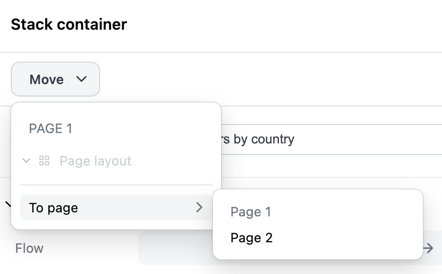
Select To page and then click the page you want to move the content to.
Accessing the properties panel
Section titled “Accessing the properties panel”When the properties panel is closed, right-click on a dashboard item and select Edit from the context menu to open it.
You can also use keyboard shortcuts (⌘ + \ on Mac, Ctrl + \ on Windows) to open the properties panel.
Undoing and redoing layout changes
Section titled “Undoing and redoing layout changes”When editing a dashboard, you can undo and redo layout changes using the Edit menu, toolbar buttons, or keyboard shortcuts:
- Edit menu - Click Edit > Undo or Edit > Redo
- Toolbar - Click the (undo) or (redo) icons in the editing toolbar
- Keyboard shortcuts - Press
⌘Z(Mac) orCtrl+Z(Windows) to undo,⇧⌘Z(Mac) or⇧Ctrl+Z(Windows) to redo
History clearing
Section titled “History clearing”Your undo/redo history is automatically cleared when you make non-layout changes to the dashboard, such as:
- Renaming the dashboard or items
- Editing filter configurations
- Updating query definitions
- Changing dashboard settings
After a non-layout change, you won’t be able to undo past that point. This ensures that layout changes and content changes remain independent and prevents conflicts between different types of edits.
Controlling mobile behavior
Section titled “Controlling mobile behavior”JustAsk automatically adapts dashboard layouts for mobile devices, but you can override this behavior for individual containers to control how they display on smaller screens.
Each stack and grid container has an On mobile setting in the properties panel that lets you choose how the container should behave on mobile devices:
| Option | Description | Available for |
|---|---|---|
| Auto | Use JustAsk’s automatic mobile layout (default) | All containers |
| Stack vertically | Force items to stack vertically, even if they’re in a naturally-sized row. Applicable only to horizontal row layouts. | Row stacks only |
| Wrap items | Keep items in a row layout that wraps to multiple lines. Applicable only to horizontal row layouts. | Row stacks only |
| Keep layout | Preserve the desktop layout exactly as designed, preventing automatic mobile adjustments. Applies to any containers nested within the parent. | All containers |
| Hide | Hide the container entirely on mobile devices | All containers |
Next steps
Section titled “Next steps”- Use pages to create multi-page dashboards, where each page has its own layout, items, and filters.
- Customize page navigation to control how viewers move between pages, including custom tabs and dynamic labels.
- Configure filters to display filters as button toggles, multi-select dropdowns, single-day pickers, and timeframe controls.