Content sharing
Sharing content with your team makes it easier to collaborate, improves decision-making across teams, and keeps everyone on the same page. It also saves time by ensuring stakeholders have access to key insights without constantly recreating or requesting the same reports.
Content access roles
Section titled “Content access roles”Each user is assigned a content access role on each piece of content. Roles can be assigned at the content or folder level.
Document permissions
Section titled “Document permissions”Users can be assigned the following roles on individual documents.
| Permission | No Access | Viewer | Editor | Manager | Owner |
|---|---|---|---|---|---|
| View dashboards | X | ✓ | ✓ | ✓ | ✓ |
| View & explore workbooks | X | X | ✓ | ✓ | ✓ |
| Update dashboards & workbooks | X | X | ✓ | ✓ | ✓ |
| Delete folders they created | X | X | ✓ | ✓ | ✓ |
| Manage permissions on content | X | X | X | ✓ | ✓ |
| Receive access requests | X | X | X | ✓ | ✓ |
Folder permissions
Section titled “Folder permissions”| Permission | No Access | Viewer | Editor | Manager | Owner |
|---|---|---|---|---|---|
| Search for the folder & its contents | X | ✓ | ✓ | ✓ | ✓ |
| View folder contents | X | ✓ | ✓ | ✓ | ✓ |
| View dashboards & explore workbooks | X | X | ✓ | ✓ | ✓ |
| Edit content in the folder | X | X | ✓ | ✓ | ✓ |
| Add new content to the folder | X | X | ✓ | ✓ | ✓ |
| Delete folder content | X | X | X | ✓ | ✓ |
| Manage folder and content permissions | X | X | X | ✓ | ✓ |
| Receive access requests | X | X | X | X | ✓ |
Best practice: assign the least permissive role that satisfies a user’s needs.
Sharing content
Section titled “Sharing content”To grant content access, click the Share icon near the top right corner of any folder or document:

Users and user groups
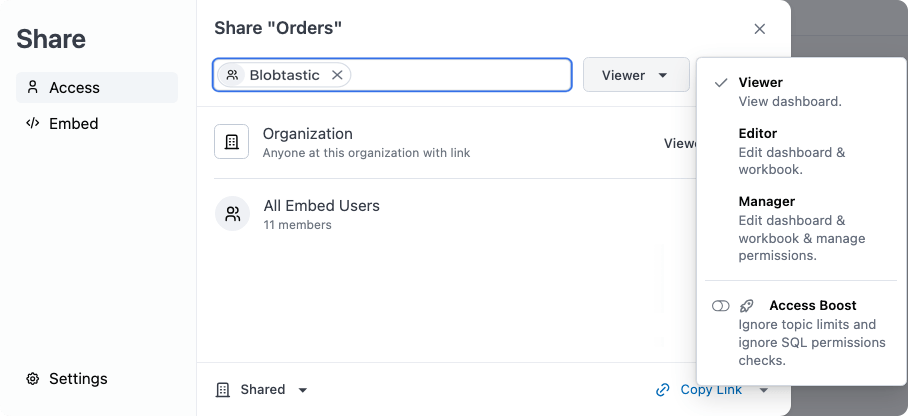
Section titled “Users and user groups”To share content with individual users or groups:
- Click the Share with users or groups field.
- Select the users and groups you want to share with.
- Use the access role dropdown (next to the Share button) to assign their role.
- Click Share.
Organization
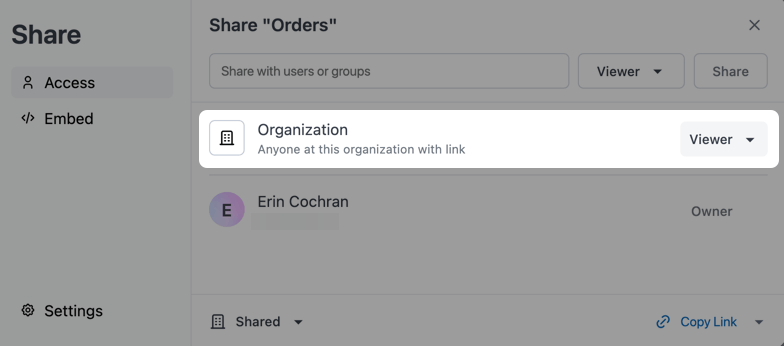
Section titled “Organization”Use the access role dropdown in the Organization row to share the content with your entire organization. This role will be applied to users when they access the content unless they have explicitly been assigned a different role. Changes will be saved automatically.
The access role you select applies to personal content you share from My Documents or content you move to your organization’s Shared hub. When you grant an organization role to personal content, it is shared organization-wide while remaining in your My Documents folder. As the owner, you retain archive and restore rights on the content even after it has been shared with the organization.
Managing ownership
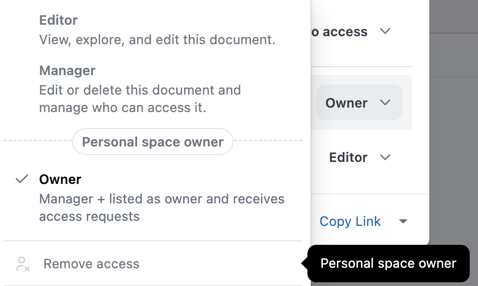
Section titled “Managing ownership”The Owner content role grants the user full content management permissions to the content; they will also receive access requests.
Documents and folders can have multiple owners, but a piece of content must have at least one owner at all times. In this case, a new owner must be assigned before you can change the current owner’s content role or remove their access entirely.
Inheriting access roles
Section titled “Inheriting access roles”The contents of a folder inherit the access role of the parent folder. Documents and subfolders can be assigned a more permissive role than the parent, but not a less permissive one.
For example, when Folder 1 requires an Editor role or higher:
DirectoryFolder 1 - Editor or higher/
- Document A - Editor or Manager
DirectorySubfolder 1 - Editor or Manager/
- Document B - Inherits from Subfolder 1
DirectorySubfolder 2 - Inherits from Subfolder 1/
- …
When Folder 1 is set to No access, documents and subfolders inside it can be assigned any more permissive role:
DirectoryFolder 1 - No access/
- Document A - Viewer or higher
DirectorySubfolder 1 - Viewer or higher/
- Document B - Inherits from Subfolder 1
DirectorySubfolder 2 - Inherits from Subfolder 1/
- …
What can users see?
Section titled “What can users see?”If a folder contains content a user has access to, the user will see the folder. They will only see the content they have access to within it. Folder names are always visible.
For example, Folder 1 has a No access role, but it contains a document that the entire organization has access to. Users will be able to see the folder and the document.