Chat with Content
Chat with Content allows you to interact with your content using natural language. Ask follow-up questions, drill into subsets, re-aggregate results, or request summaries, all without leaving the page.
Requirements
Section titled “Requirements”To use Chat with Content, you’ll need Restricted Querier permissions or higher for the model the content is built on.
Enabling Chat with Content
Section titled “Enabling Chat with Content”Your admin must enable Chat with Content.
Using Chat with Content
Section titled “Using Chat with Content”Opening the chat panel
Once enabled, a floating avatar will appear on published content. Click the avatar to open a split-view interface, where the chat appears side-by-side with your content.
The split-view layout allows you to interact with the JustAsk Agent while keeping your content fully visible, making it easy to reference charts and data as you chat.
Opening the chat from edit mode
Click the icon in the sidebar. This opens a split-view interface, allowing you to chat while working on your layout.
Focusing on specific charts
You can scope the agent to specific charts by:
- Clicking a specific chart in the chat, or
- Clicking on a tile’s (three dot icon) and selecting Ask a follow up question:
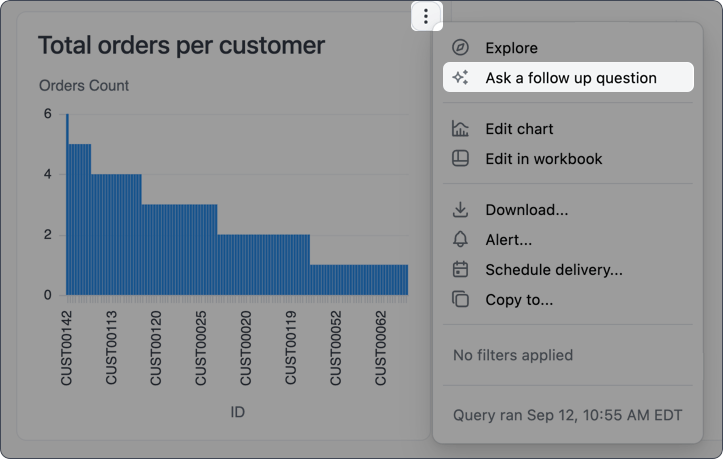
The JustAsk Agent will focus on the selected chart until you remove the focus or close the chat panel.
Unfocusing from specific charts
To unfocus the agent from a specific chart, click the X on the chart chip in the chat input. You can also close the chat panel entirely, though this will remove the chat history.
Attaching images
You can paste images directly from your clipboard into the chat input to provide visual context alongside your questions. Copy an image to your clipboard and paste it into the chat input using your system’s paste command (Cmd+V on Mac, Ctrl+V on Windows/Linux).
The image appears as a file chip in the chat input, indicating it’s ready to be sent with your message.
Getting help
Section titled “Getting help”If you’re stuck and can’t remember how to do something in JustAsk, just ask the JustAsk Agent. Questions like “How do I do [thing]?” will prompt the agent to search the docs and provide you with an answer, all without leaving your JustAsk workflow.
You can also directly tell the agent to search the docs when researching the answer to your question.