Wireframing with placeholder content
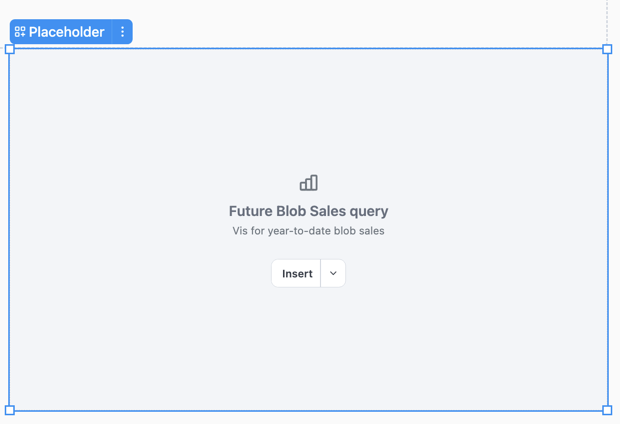
Placeholders let you design and wireframe your dashboard layout before the real content exists, helping you visualize structure and spacing during the design phase.
Placeholders appear in both edit mode and published views, making them useful for sharing work-in-progress dashboards or communicating layout plans to dashboard viewers.
Requirements
Section titled “Requirements”Modifying dashboard layouts requires Editor, Manager, or Owner permissions on the document.
Adding placeholders
Section titled “Adding placeholders”In the toolbar, click Add > Layout > Placeholder. New placeholders are inserted as untyped (Generic).
Configuring placeholder type
Section titled “Configuring placeholder type”Placeholders can be configured to mock specific content types, which will filter the replacement options in the Insert menu:
- Query — Limits replacement to workbook queries and charts
- Filter & control — Limits replacement to filters and controls from your workbook
- Text — Offers an option to insert a new text block
The Generic option will populate the replacement options with Query and Filter & control items.
To set a placeholder’s type:
- Use the option in the placeholder
- Click the placeholder and use the Settings > Type option in the properties panel
- Right-click a placeholder and select Type from the context menu
Customizing labels and descriptions
Section titled “Customizing labels and descriptions”Placeholders display a label and optional description to help communicate their purpose.
- Labels - Defaults to
Placeholder <placeholder-type>, where<placeholder-type>isquery,filter / control, ortext. Use the Label field in the properties panel to change the label text. - Description - This optional field allow you to add wireframe instructions or notes. Use the Description field in the properties panel to edit the description.
Replacing with real content
Section titled “Replacing with real content”To replace a placeholder with real content, click the Insert button in the placeholder tile or the properties panel. The options in the replacement menu are dependent on the placeholder’s current type.
For Text placeholder types, clicking the Insert text button will convert the placeholder into a Markdown text tile.
Limitations
Section titled “Limitations”Creating brand-new queries, controls, or filters directly from a placeholder is not currently supported. Use the Select… button to choose from existing workbook items only. Text is the exception—you can insert a fresh text block.