Filters
Each dimension can be added as a filter to focus on specific rows of data. Different filtering options will be presented for dates, numbers, and strings:
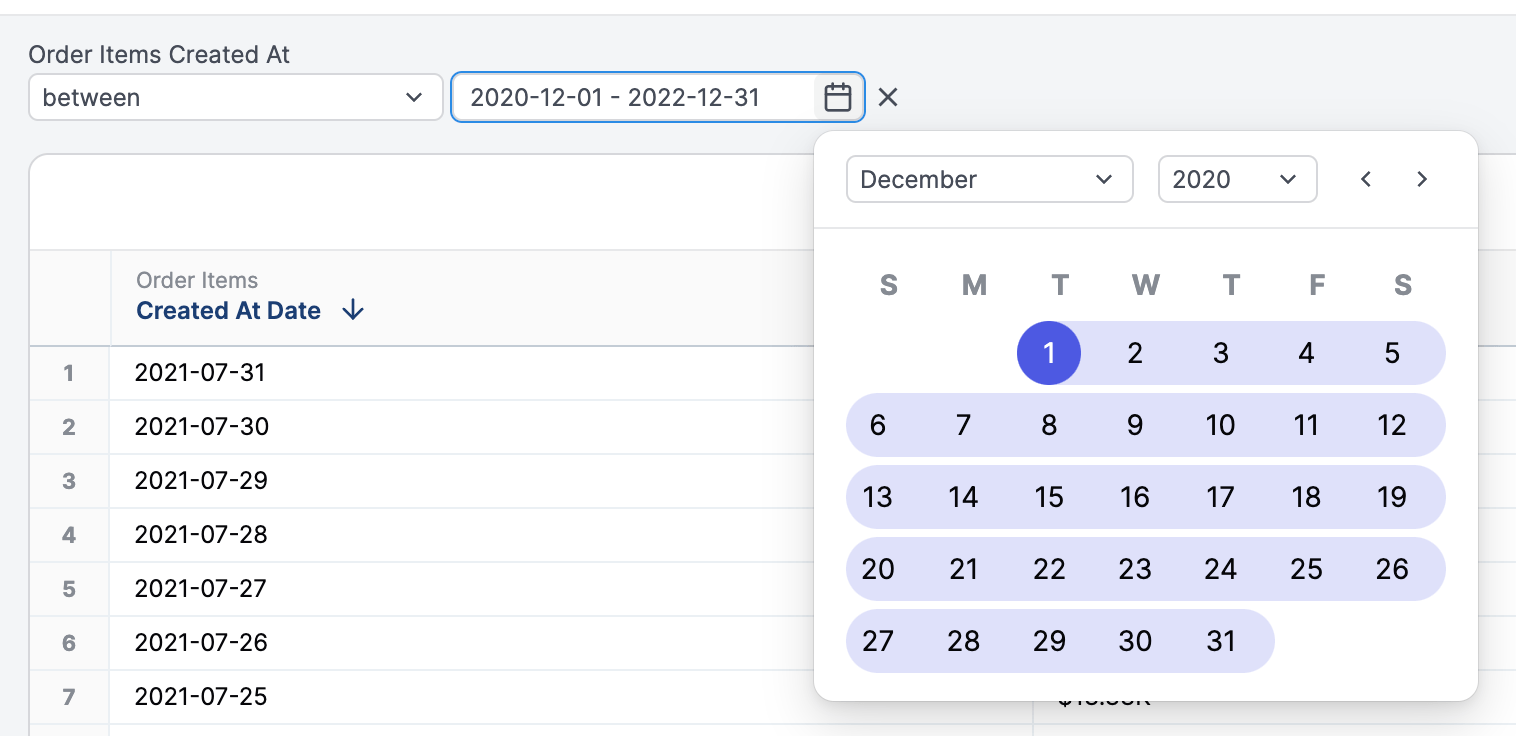
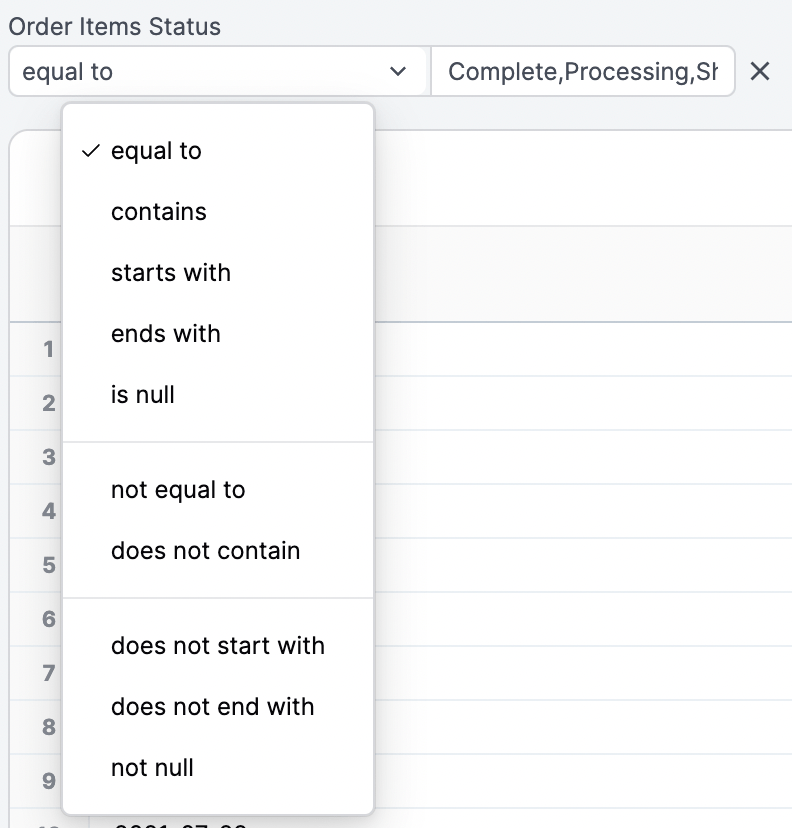
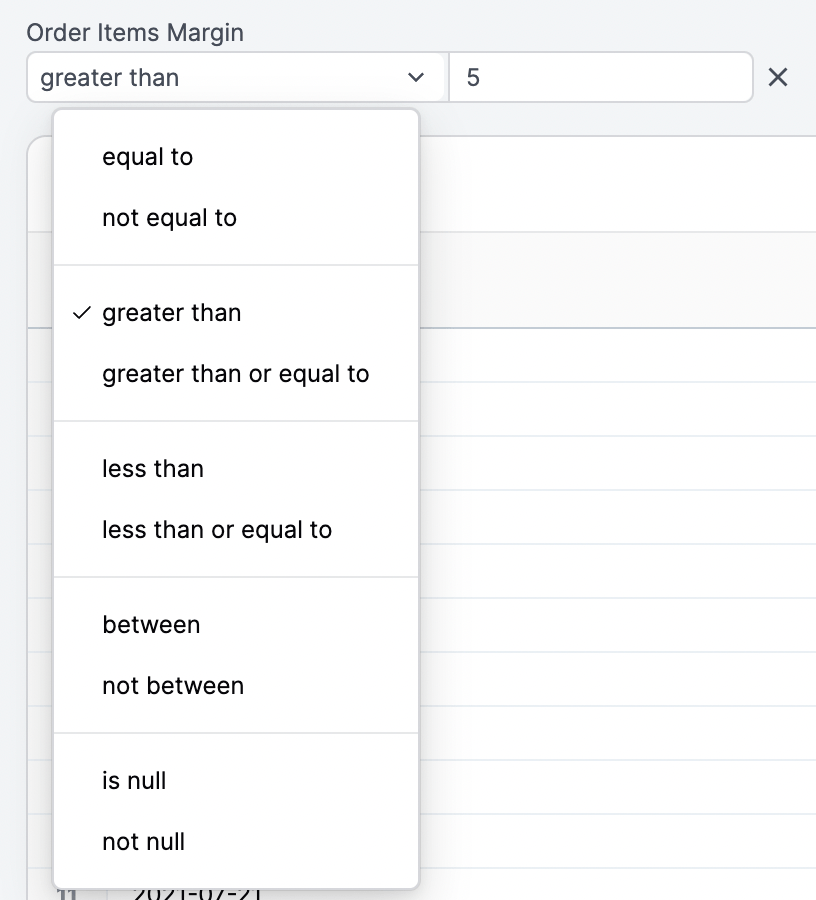
To filter using more than one value (equivalent to using OR), insert a comma between values: [bread, cheese]. If your filter values include commas, you can escape them with \: San Francisco\, CA.
Date filters
Section titled “Date filters”Date filtering offers several filter options, including:
- Absolute date filtering, such as
2022,2023-01-01,2021-Q4 - Relative date filtering, such as
after 7 complete days ago,1 year ago
At times, filtering may require using both absolute and relative dates, for example first ten days of 2023 or 100 days ago for 10 days. For these situations, time for an interval duration offers more flexible time inputs:
- The first input should contain the starting point. This value should either be a date (
2023-01-01) or a relative date (10 days ago). Note:Agois required. - The second input should contain the duration.
Check out the following examples to see how it all comes together:
# First ten days of 2023[2023][10 days]# 100 days ago for 10 days[100 complete days ago][10 days]# 1 hour ago for 2000 milliseconds[1 hour ago][2000 milliseconds]Interval timeframe units
Section titled “Interval timeframe units”Intervals can accept any timeframe unit:
| Interval type | Supported units |
|---|---|
| day | day, days, complete day, complete days |
| week | week, weeks, complete week, complete weeks |
| month | month, months, complete month, complete months |
| quarter | quarter, quarters, complete quarter, complete quarters |
| year | year, years, complete year, complete years |
| millisecond | millisecond, milliseconds, complete millisecond, complete milliseconds |
| second | second, seconds, complete second, complete seconds |
| minute | minutes, complete minute, complete minutes |
| hour | hour, hours, complete hour, complete hours |
Filtering by another query
Section titled “Filtering by another query”With two or more tabs, one tab, or query, can be used as a filter in other queries. This is particularly useful for creating a dynamic subset of information in one query and a deep dive into the results on another tab.
For example, you want to understand the brands your top customers are purchasing. To do this, you would:
-
In a workbook, create a tab with the definition of a top customer.
-
Create a new tab.
-
In the new tab, add the dimensions and measures you want to analyze.
-
In the field picker, locate a dimension used in the top customer definition tab.
-
On the dimension, click the options menu (three dots) and select Filter.
-
Select Is from another query.
-
In the modal that displays, select the tab and dimension you want to filter by:
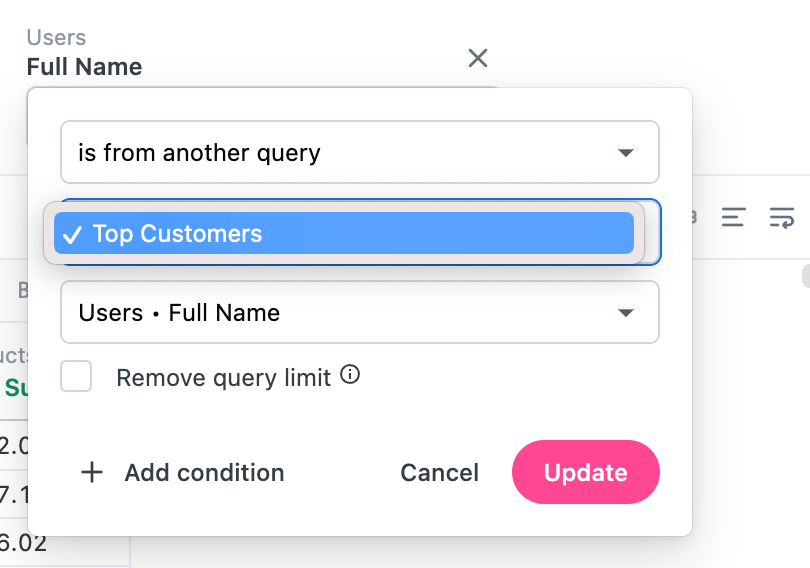
This will filter the tab results by the selected subset.
You can also use this approach to filter out data. To do this, select Is not from another query in the Filter menu.
Filtering by multiple conditions
Section titled “Filtering by multiple conditions”You can filter a field by multiple conditions (e.g. Date is in the past 30 days OR date is null) by clicking Add Condition in the filter modal. Then, select if you want All or Any of the conditions to apply to the query.
Filtering across multiple fields
Section titled “Filtering across multiple fields”You can create filter groups of OR filters that span multiple fields, allowing you to build queries where any of several conditions across different fields can be true, such as Country is USA OR Joined Month is March.
Unlike filtering by multiple conditions on a single field, multi-field OR filters let you combine conditions from entirely different dimensions, while single-field multi-condition filtering applies multiple conditions to the same field.
For example:
- Single-field filtering -
Date is in the past 30 days OR date is null, where both conditions apply to the same date field - Multi-field filtering -
Country is USA OR Gender is Female, where conditions apply to two different fields
To create a multi-field OR filter:
- Add a filter to your query by selecting a dimension and choosing your filter condition.
- Hover over the filter and click the icon.
- Click Add to filter group > New filter group.
- In the dialog that displays, click Add filter.
- Select another field and configure its filter condition.
- Repeat as needed to add additional fields to the filter group.
- When finished, click Create.
Filter suggestions
Section titled “Filter suggestions”When you filter on a field, JustAsk suggests values to pick from. By default these come from a query for the field’s distinct values, capped at 2,000 rows, scoped to the topic the field belongs to.
Adding dashboard filters to workbook queries
Section titled “Adding dashboard filters to workbook queries”When editing a workbook tab that’s backed by a dashboard with filters, you can quickly add dashboard-level filters to your workbook query using the Filters from dashboard dropdown.
Click the Filters from dashboard dropdown located in the query tab’s filter bar to see applicable dashboard filters. Values and settings from the dashboard are preserved when a filter is added.
If you don’t see a filter you expect to, keep in mind that JustAsk excludes:
- Filters already present on the query
- Filters whose fields are covered by existing controls
- Hidden filters
- Cross-topic filters (filters that don’t match the tab’s topic)
- Dashboard controls