Pivoting query results in JustAsk workbooks
Quickly build pivot tables by right-clicking any field in the field picker and selecting the Pivot option.
Flattening and filtered measures
Section titled “Flattening and filtered measures”You can also flatten the pivot and create filtered measures by clicking the actions menu (three dots) on a column and selecting Flatten pivot. When using this feature you can also choose to create an Other bucket on the fly:
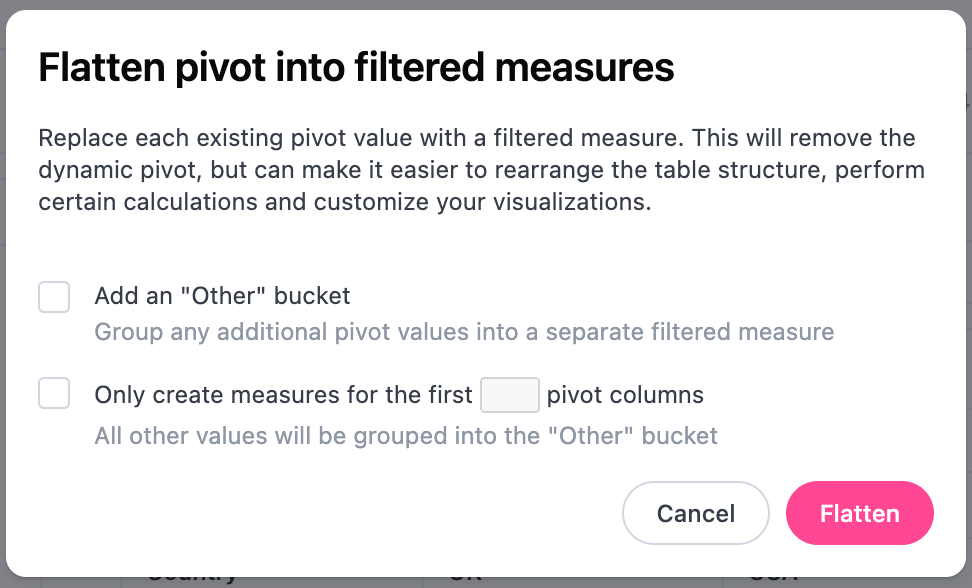
The new filtered measures will appear under the Tab-only fields section and the field that was originally pivoted on will no longer be selected as a field that is in-use.
Grouping measures
Section titled “Grouping measures”-
Group Measures in Pivot - Applicable to pivot tables. When enabled, measures in a pivot table will be grouped together. Open the toggle below for an example.
Grouped measures in pivot example
Let’s say you have the following table, which is pivoted using
Status:Status Processing Processing Completed Processing Total Sales Order Items Total Sales Order Items 44,562.32 564 100,892.61 2,654 If Group Measures in Pivot is enabled, the table would become this:
Status Processing Completed Total Sales Order Items Total Sales Order Items 44,562.32 564 100,892.61 2,654